
Define the USB-C user promise before selecting hardware
Start with a plain-language promise: a user connects one approved USB-C cable and gains the agreed room functions. Those functions may include the front display, room camera, microphones, loudspeakers, touch or content sharing, network access and laptop charging. Write down which are required and which are optional. A cable that only presents video is not equivalent to a cable that also exposes the room's USB peripherals.
The connector shape is not a specification. USB-IF guidance makes clear that manufacturers can choose whether a USB-C product supports USB 3.2, USB4, USB Power Delivery or an alternate mode. A laptop may therefore have two USB-C ports with different capabilities, and a charging cable may carry only USB 2.0 data. An AV integrator in China should turn the one-cable promise into a tested performance schedule rather than rely on a USB-C label.
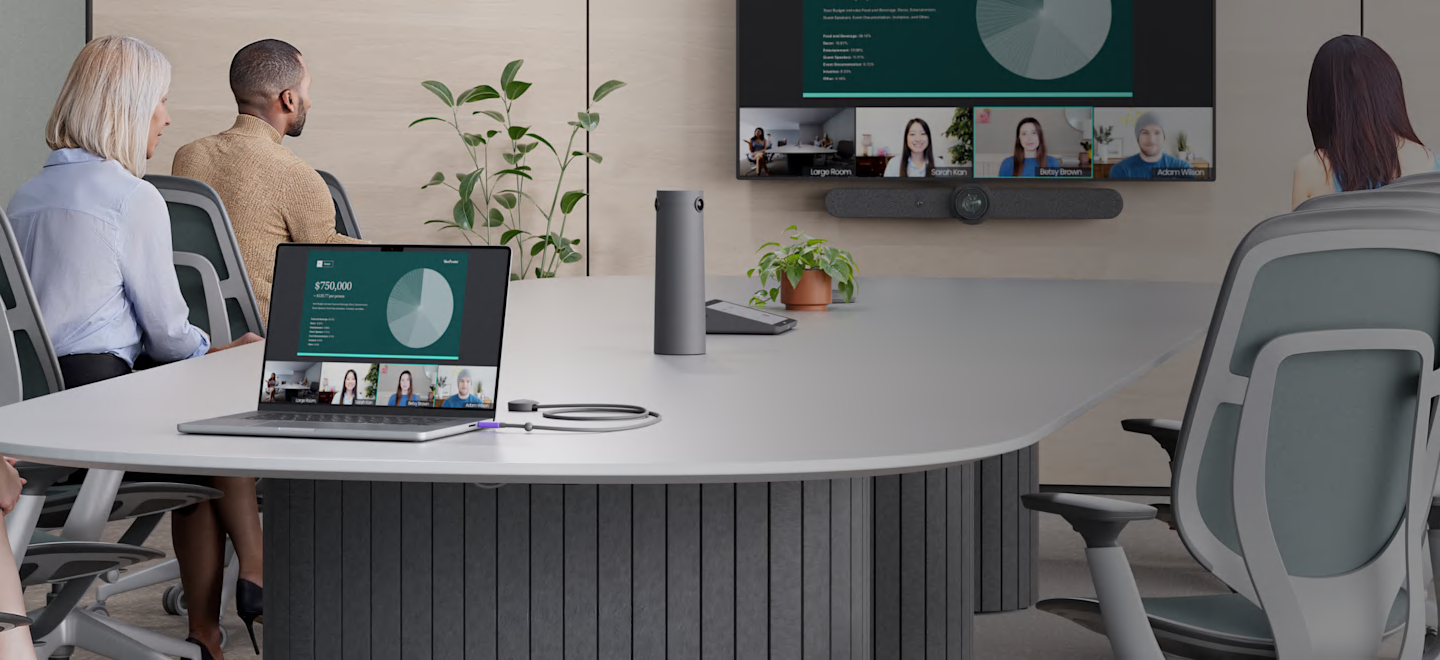
Separate video, USB data and power requirements
Treat video, peripheral data and charging as three separate paths that happen to share one connector. For video, confirm that the host supports DisplayPort Alt Mode, USB4 video tunnelling or the specific technology used by the room system. VESA explains that DisplayPort over USB-C can use two or four high-speed lanes. A design using two lanes can preserve simultaneous SuperSpeed USB data, while four video lanes may leave only USB 2.0 for other traffic, depending on the implementation.
For USB data, state the bandwidth needed by the camera, audio devices, touch interface and any hub. A high-resolution camera can expose weaknesses that a keyboard or basic speakerphone will not. For power, state the laptop charging target and whether it is required during a full meeting. USB Power Delivery 3.1 can support up to 240 W with suitable equipment and a full-featured cable, but that maximum does not mean the room source, cable or laptop will negotiate it. Record the actual supported power profiles of the complete chain.
Choose a complete supported signal chain
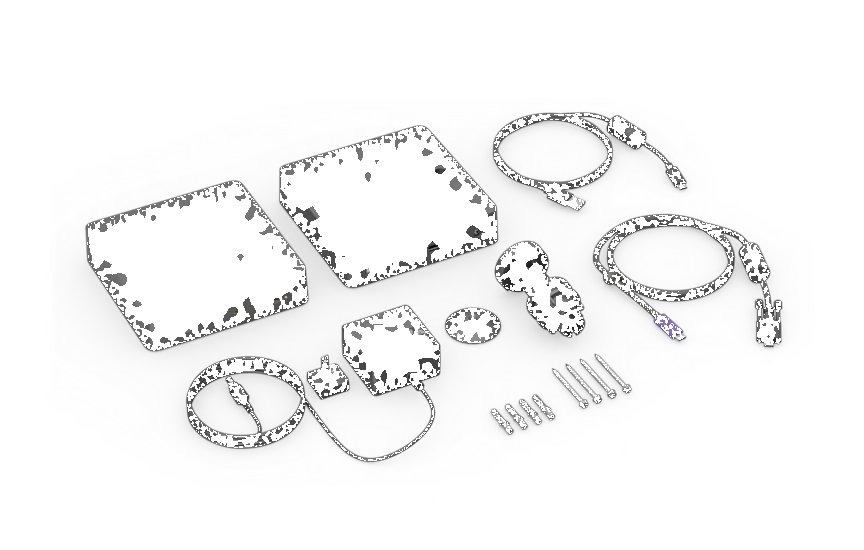
Select the laptop cable, table interface, transmitter, receiver, room compute or video bar, USB hub, display path and power supply as one system. Product-specific extenders may carry USB-C functions over category cable or fibre, but they are not interchangeable with a generic network connection. Confirm the supported cable category, shielding, termination, maximum distance, resolution, USB speed, charging method, firmware and permitted intermediate adapters.
Logitech Extend is one current example of this product category. Logitech describes a single USB-C connection for Android or BYOD-based rooms, with extension over category cabling and optional charging up to 100 W when a suitable USB-C power adapter is connected to the table-side unit. This illustrates why the quoted workflow must include the exact endpoints, power source and supported room configuration rather than a generic line item called USB-C extension.

Engineer cable reach and the tabletop connection
Place the user connector where laptops naturally sit and protect it from pull, twisting and repeated impact. The cable should reach without crossing a walkway or forcing the user to stretch it across the table. Provide strain relief, a replaceable service loop and a clear method of storing the connector. Avoid an unapproved coupler or short patch lead added after commissioning; every extra connection changes the high-speed channel and can affect power negotiation.
Do not specify distance from a general USB-C claim. Passive, active copper, optical and category-cable extension products support different combinations of data, video and power. Some optical leads do not carry charging power, while some active cables are directional. Test the final installed route, including table boxes and adapters. Label a directional cable at both ends and retain the exact manufacturer and part number for replacement.
Design the room mode and fallback path
Decide what happens when USB-C is connected to a native room system. The room may switch into BYOD passthrough, remain in its normal platform mode while accepting content only, or require the user to select an input. Document which device owns the camera, microphone, loudspeaker and display in every state. Prevent two computers from competing for the same USB peripherals, and make the return to normal room mode automatic or clearly instructed.
Provide a fallback that matches the business risk. A known-good HDMI presentation input may be sufficient for content, while a critical hybrid room may also need a spare approved USB cable or a documented native-room joining method. The BYOD huddle-room design guide for China explains why the connection journey, room conditions and support model must be designed together. A fallback is useful only when users and support staff know what capability it preserves and what it does not.
Build a representative host compatibility matrix
Test the laptops people actually use. Include representative Windows and macOS models, common docks where policy permits them, current operating-system builds and the approved meeting applications. Record the tested port, because another USB-C port on the same laptop may behave differently. Include a guest device only when the organisation intends to support guest-led meetings.
For each host, verify display detection, native resolution, refresh rate, scaling, protected content where relevant, camera format, microphone and loudspeaker selection, mute synchronisation, touch behaviour and charging under load. Test connection before and during a meeting, cable reversal, sleep and wake, restart, disconnection and reconnection. Repeat with the laptop battery low enough to request meaningful charge. A green link light is not acceptance evidence.
- Record laptop model, operating system, tested USB-C port and power rating.
- Confirm video resolution and simultaneous USB peripheral performance.
- Verify camera, microphone, speaker, mute and content-sharing workflows.
- Measure negotiated charging power where the design promises charging.
- Test recovery after sleep, restart, cable reversal and accidental disconnect.
Coordinate security, updates and support ownership
A USB-C room connection can expose more than a display. It may present cameras, microphones, speakers, touch interfaces, storage functions or network adapters to the laptop. Review the device classes with IT and information security, especially where endpoint-control policies block unfamiliar peripherals. Disable unused interfaces where supported and avoid connecting an unmanaged network adapter merely because it is built into a dock.
Assign ownership for firmware, room settings, laptop policy and cable replacement. A product update can change USB enumeration, display behaviour or compatibility, so use a pilot room before wider deployment and retain a known-good baseline. The meeting-room compute platform guide provides a wider framework for choosing Windows, Android or appliance rooms and controlling their lifecycle.
Commission and hand over the exact installed system
Commission with the final display, cables, extenders, firmware, power supplies, laptop models and network policies. Run the busiest credible combination: high-resolution content, active camera, room audio and charging at the same time. Leave the connection operating long enough to reveal intermittent dropouts or thermal issues, then test restart and recovery. Record failures and retests against agreed acceptance criteria.
Hand over a signal-flow drawing, exact cable and endpoint part numbers, direction and distance records, firmware versions, supported host matrix, measured charging results, room-mode instructions, fallback procedure, spare strategy and escalation contacts. Add a change rule: replacement cables, adapters, laptops, firmware or room peripherals require a compatibility check. That discipline turns a convenient USB-C connector into a repeatable meeting-room service.